All guides
 View full size
Domains
Add the email domains your people sign in with, and set each one's rules.
Find it at Domains → All Domains
View full size
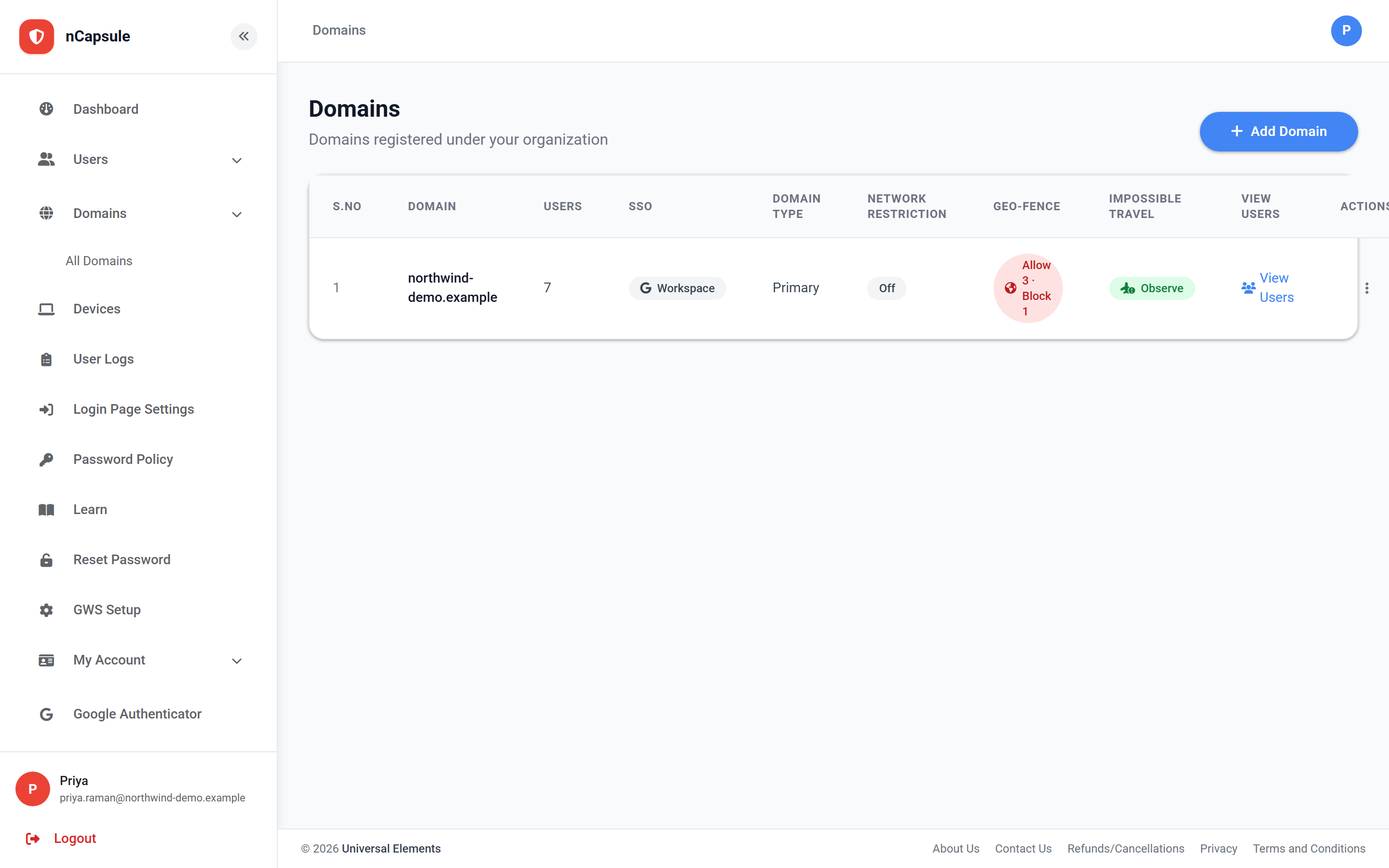
A domain is the part of your users' email addresses after the @ sign. Every user belongs to one, and most sign-in rules are set per domain — so this page is where geo-fencing, sign-in hours, impossible travel and IP restriction are configured.
Primary and secondary
Primary
Your main domain. There is one of these, and it is used for user syncing.
Secondary
Any additional domains your organisation uses. Each carries its own rules.
What the list shows
Domain
The domain name your users' addresses end in.
Users
How many accounts belong to it.
SSO
Which identity provider it uses, and whether setup is finished.
Domain Type
Primary or secondary.
Network Restriction
Whether IP restriction is configured for it.
Actions
Where the per-domain rules live — see below.
The rules on each domain
Network Setup
IP restriction — which addresses Internal users may sign in from.
Geo-fencing
Which countries are allowed or blocked.
Sign-In Hours
The schedule when signing in is permitted.
Impossible Travel
Detection of sign-ins too far apart to be real travel.
Rules are per domain, not per organisation
Two domains can have completely different country lists or schedules. If you need different rules for teams inside one domain, that is what groups are for.
A domain with users cannot be deleted
Move or remove its users first. This prevents accounts being orphaned by a mistaken deletion.
Setting a rule on a domain
- 1 Go to Domains → All Domains.
- 2 Use the Actions menu on the row for the domain you want.
- 3 Pick the rule — Network Setup, Geo-fencing, Sign-In Hours or Impossible Travel.
- 4 Save it, then opt users in on their user records or with a group.
More on domains and setup