The page your people sign in on can carry your organisation's logo and a background of your choosing, rather than a generic one.
The settings
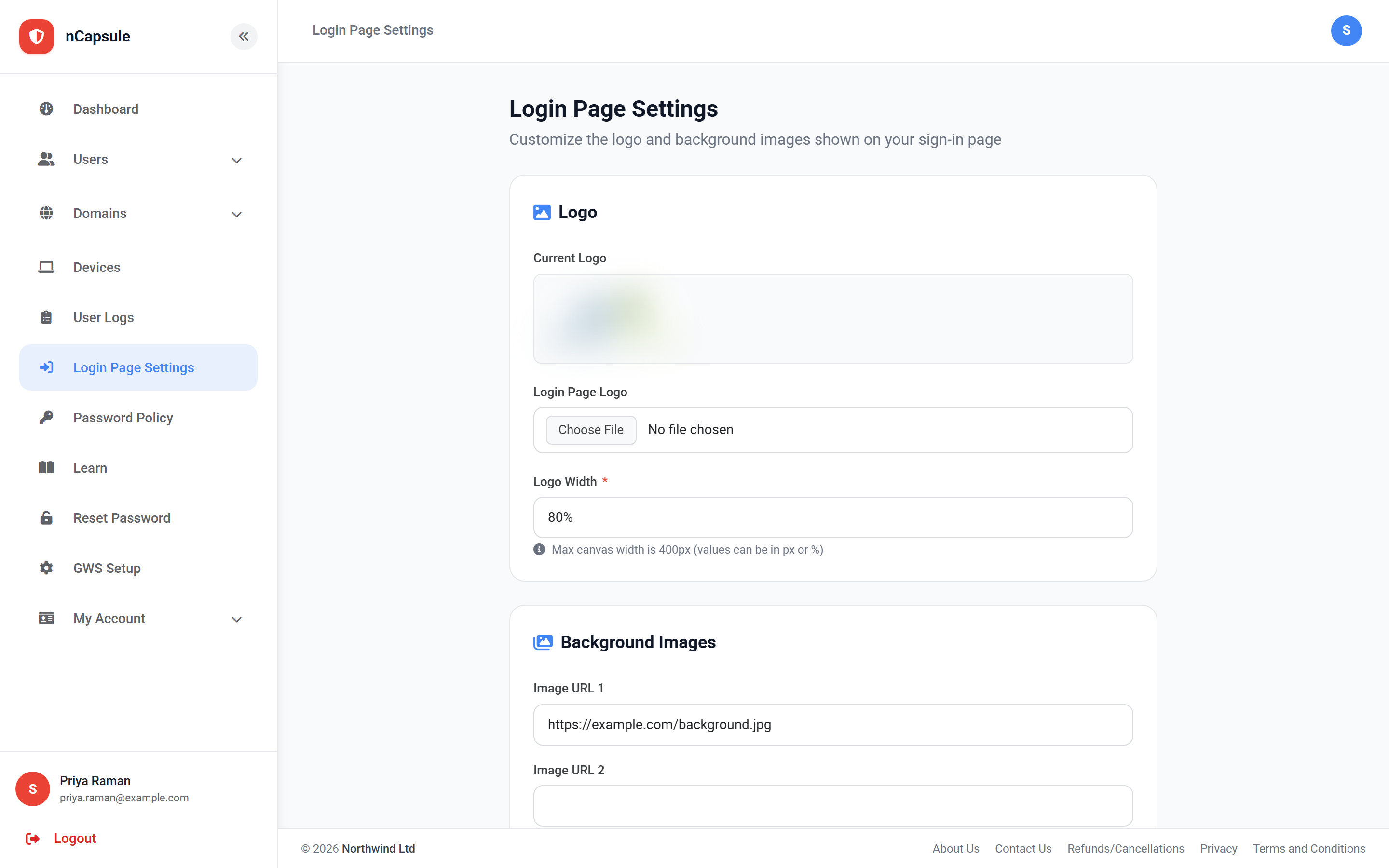
Current Logo
What is in use now. Uploading a new one replaces it.
Login Page Logo
Upload a replacement. PNG with a transparent background works best.
Logo Width
In pixels or a percentage. The canvas is 400px wide, so 80% renders at 320px.
Image URL 1-5
Backgrounds, given as web addresses. With several, one is chosen per visit.
Setting it up
1Upload your logo and save.
2Adjust the width if it looks too large or small against the 400px canvas.
3Paste in one or more background image URLs.
4Open your sign-in page in a private window to see it as your staff will.
Background images are loaded from wherever you point them
They are fetched by the visitor's browser from the URL you give, so use somewhere you control and expect to keep. A link that later breaks or is replaced changes your sign-in page without warning.
Branding is a security control too
Staff who are used to seeing your logo on the sign-in page are more likely to hesitate at a convincing fake that does not have it. It is a small thing, but it costs nothing.
 View full size