There are three ways to get people into nCapsule. Which one fits depends on how many you have and whether they already exist in Google Workspace or Microsoft 365.
The three routes
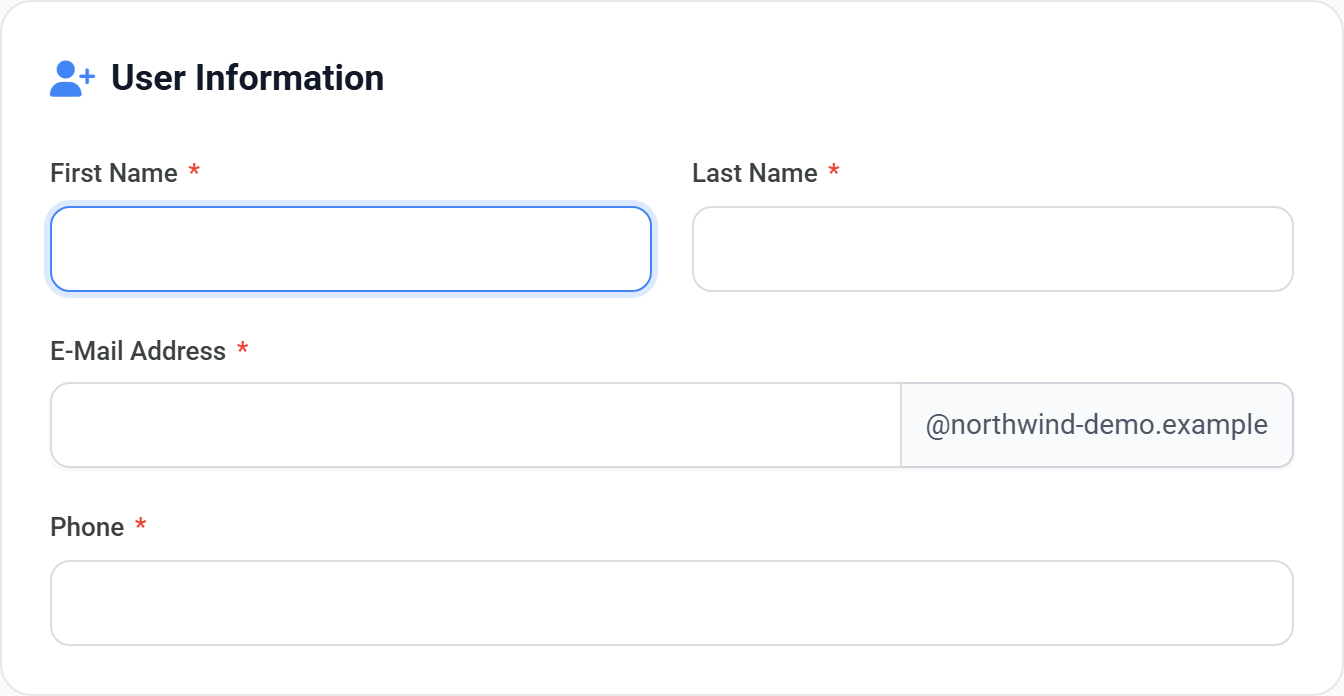
Create User
One person at a time. Best for a new joiner.
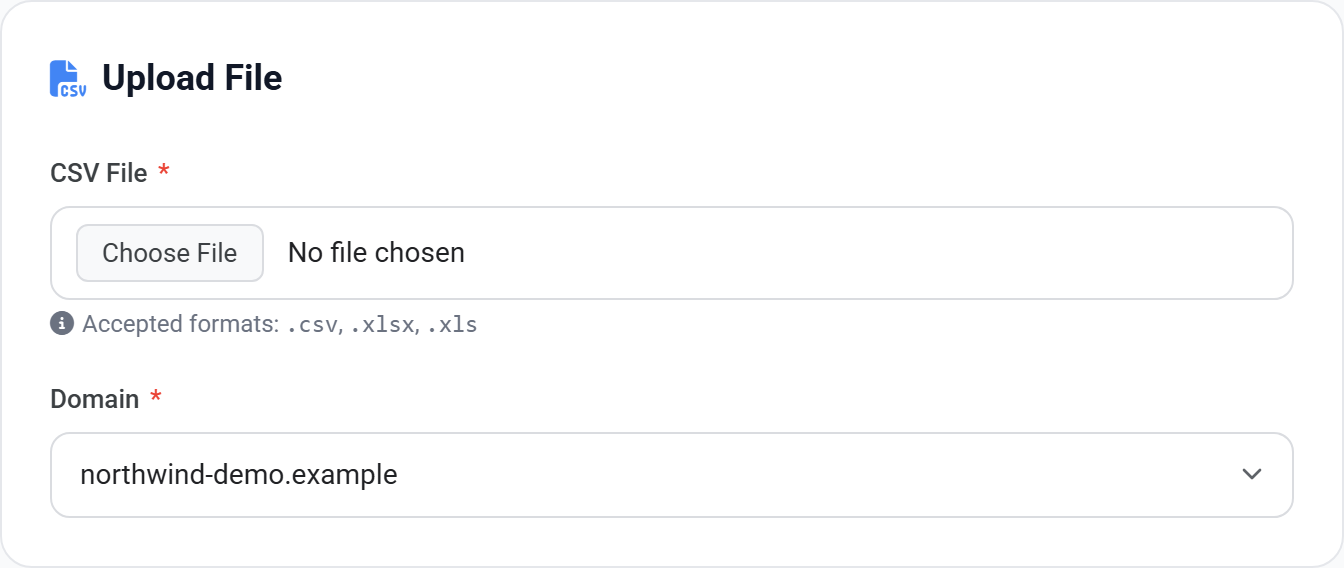
Create Bulk Users
Upload a CSV. Best for an initial rollout of tens or hundreds of people.
Sync Users
Pull people straight from Google Workspace or Microsoft 365. Best when they already exist there.
The CSV for a bulk upload needs an exact header row. The upload is rejected if the columns do not match, and any row with a problem is reported with its line number so you can fix just that line rather than starting again.
CSV columns, in this order
First_Name
Given name.
Last_Name
Family name.
Email_Address
Must be on a domain you have added.
Password
Their initial password.
User_Type
Internal or External — this decides whether IP restriction applies to them.
View full size
The bulk upload page. Any row with a problem is reported with its line number, so you can correct that line rather than starting the file again.
Get User_Type right the first time
Internal users are subject to the domain's IP restriction; External users are not. Setting a home worker to Internal is the most common cause of an unexpected lockout after a bulk import.
After the accounts exist
1New accounts start with every restriction off, however they were created.
2Put them in a group, or use Bulk Manage Users, to bring them under your rules.
3Check the Security column on Users → All Users to confirm nobody was missed.
 View full size
 View full size