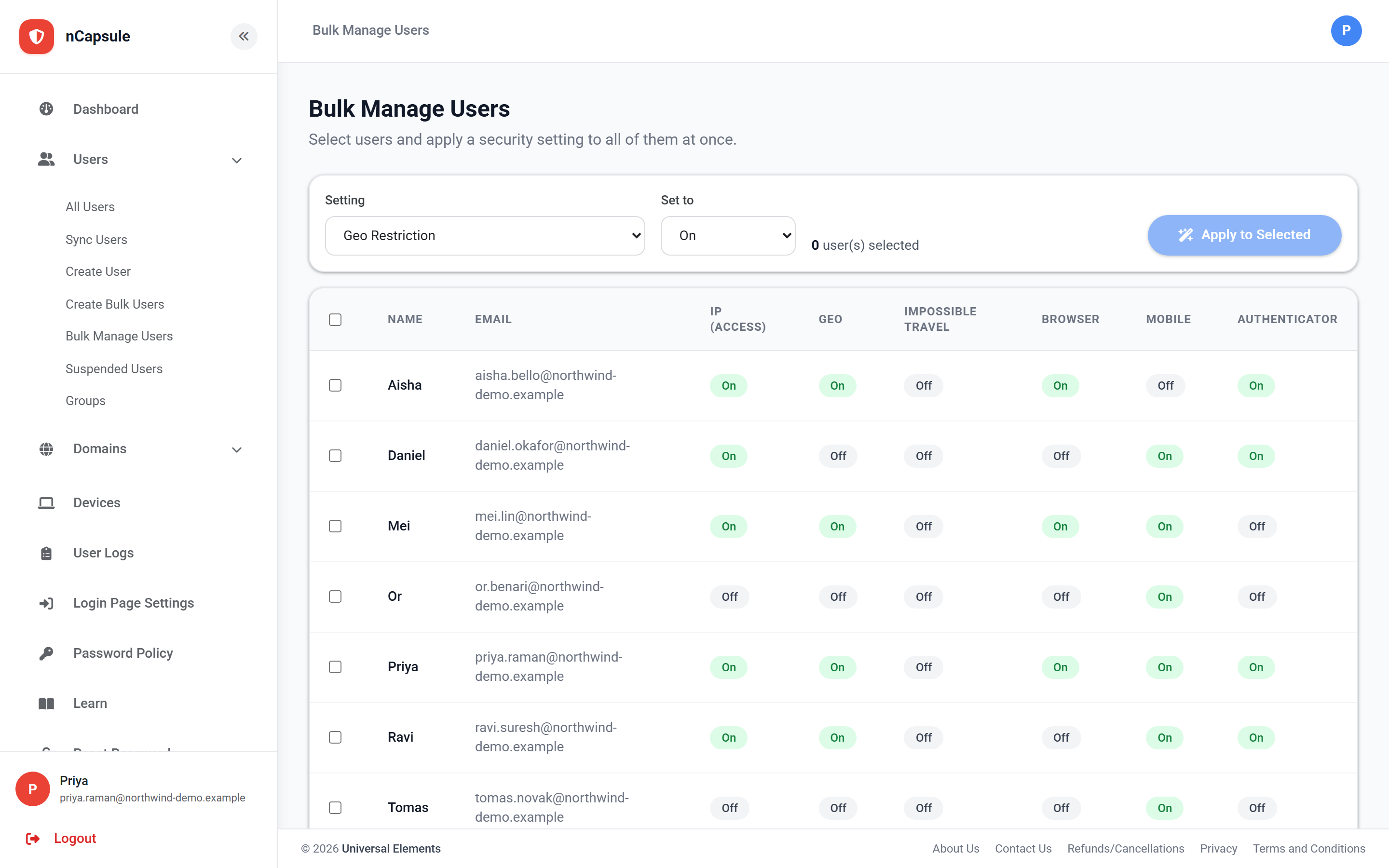
Select any number of users, choose one setting, choose the value, and apply it to all of them at once. This is how you turn a control on across a department without opening each person in turn.
Settings you can apply in bulk
Geo Restriction
Whether the domain geo-fence applies to them.
Sign-In Hours
Whether the domain schedule applies to them.
Impossible Travel
Whether travel detection applies to them.
IP Restriction
Their Access Type — Internal or External.
Browser Restriction
Whether they are limited to registered browsers.
Mobile Access
Whether they may sign in from a phone or tablet.
Authenticator
Whether a second factor is required.
Applying a setting
1Tick the users you want to change, or the header checkbox to select everyone shown.
2Choose the setting from the Setting list.
3Choose the value in Set to.
4Check the "n user(s) selected" count, then choose Apply to Selected.
One setting at a time
Each pass applies a single setting. To switch on both the authenticator and browser restriction for a team, run it twice — the selection is quick to repeat.
Bulk edit or a group?
Bulk editing applies a value once, to the people you picked today. A group applies rules continuously to whoever is in it, and lets that cohort have different settings — its own country list or schedule — rather than just the domain's. Use bulk editing for a one-off sweep; use a group when the team needs its own rules.
Check the count before applying
The action bar shows how many users are selected. Since several of these settings can refuse a sign-in, that number is worth reading before you confirm.
View full size
The action bar. Choose the setting, choose the value, check the count, then apply.
 View full size
 View full size