Devices and browsers
Tie a user to the browsers they have registered.
 View full size
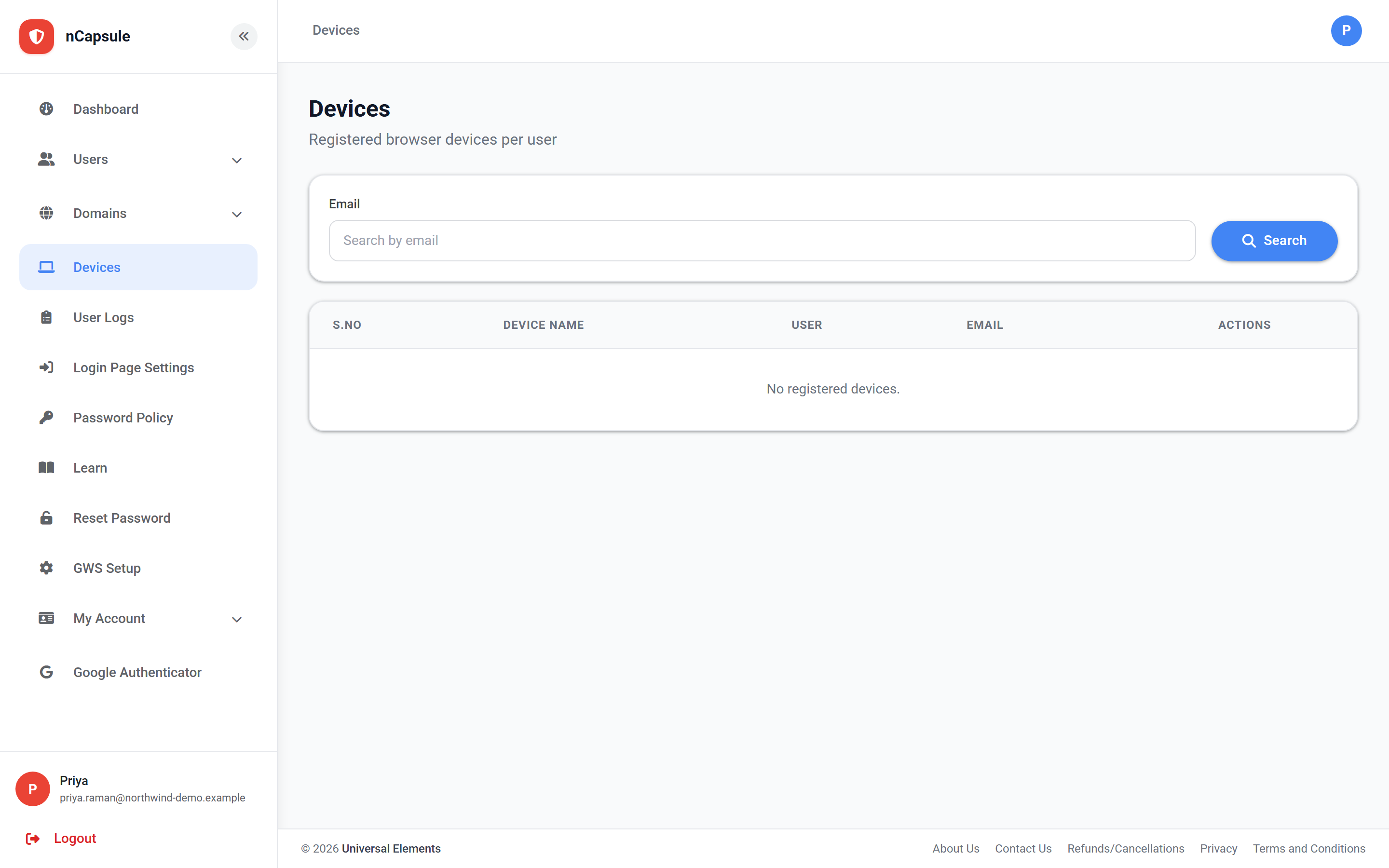
With browser restriction on, a user may sign in only from a browser they have registered. A new browser has to be confirmed by a one-time code before it can be used.
This is a per-person setting rather than a group one, because the registration belongs to an individual browser on an individual machine. Use this page to see what each user has registered and to remove a device they no longer have.
- 1 Browser restriction is switched on for them, on their user record or in bulk.
- 2 At their next sign-in from an unrecognised browser, they are sent a one-time code.
- 3 Entering that code registers the browser, and later sign-ins from it go straight through.
There is no "re-send code" action. Deleting the registration here is what forces the user to confirm again — that is the fix when someone gets a new laptop or clears their browser data.
Chrome and Firefox on the same machine count separately, and clearing cookies can lose the registration. Expect a user with several machines to appear here more than once.
This page lists what has been registered. Switching the restriction ON for someone is done on their user record.
- 1 Go to Users → All Users and open the person.
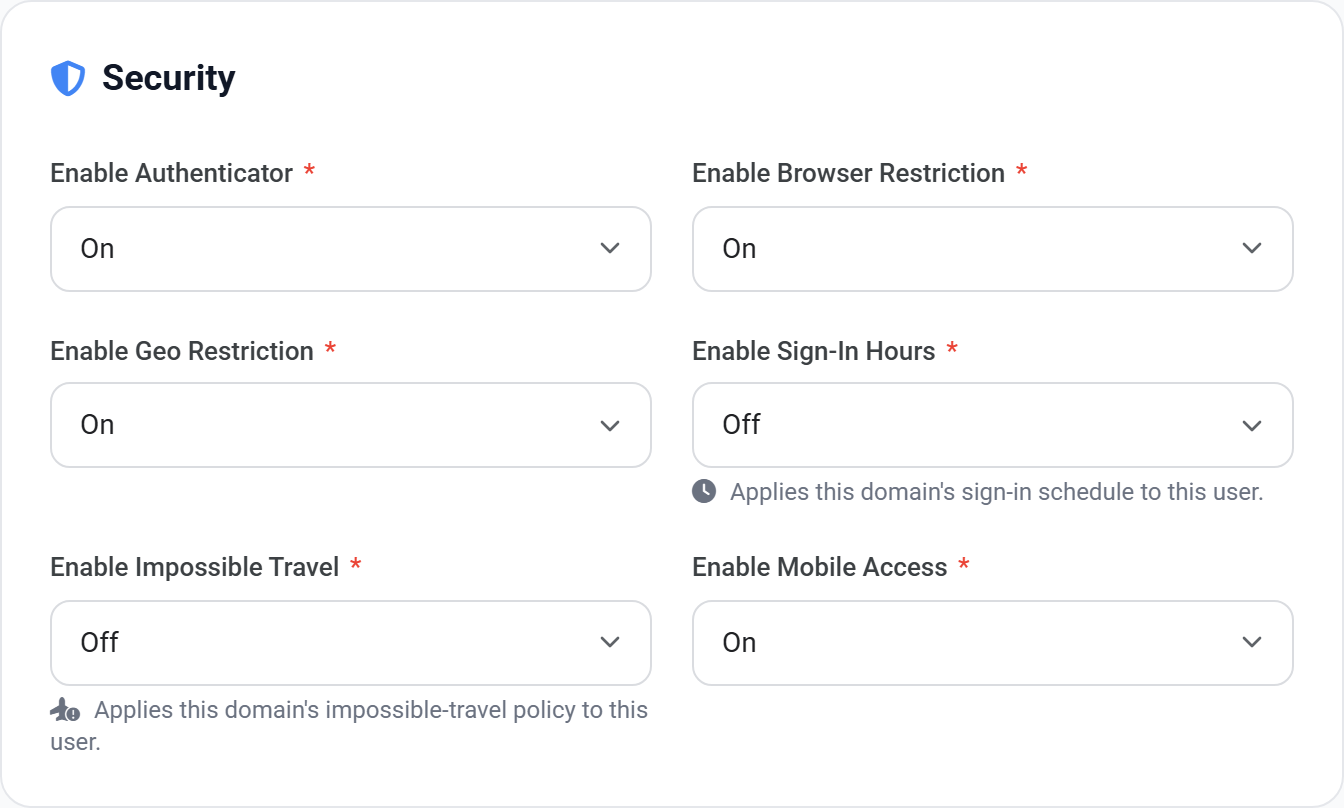
- 2 On the Security card, set Enable Browser Restriction to On.
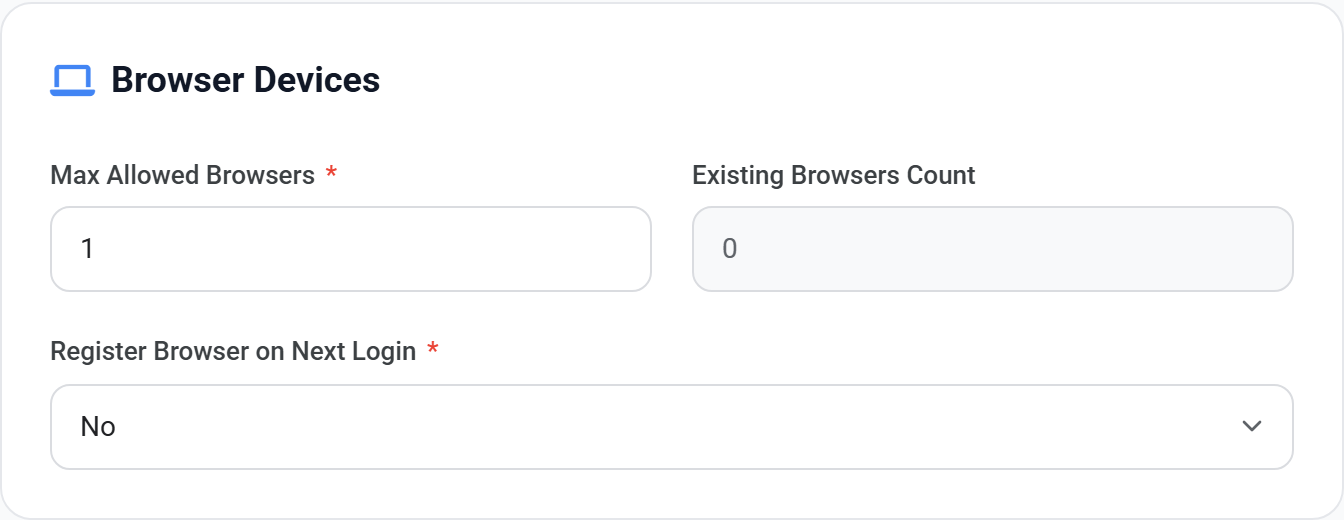
- 3 On the Browser Devices card, set Max Allowed Browsers to suit how many machines they use.
- 4 At their next sign-in they are sent a one-time code to register that browser.
 View full size
 View full size
Users → Bulk Manage Users can set Browser Restriction across a selection in one action, rather than opening each record.