IP restriction
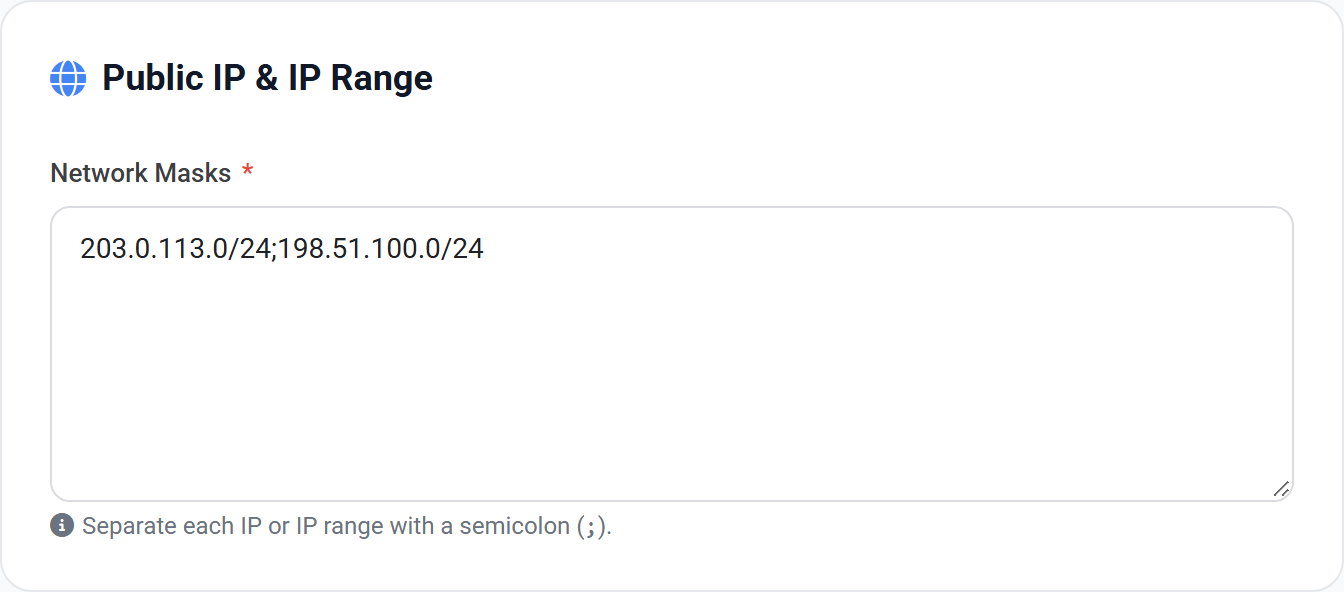
Allow sign-ins only from your office networks or approved addresses.
 View full size
The tightest of the location controls. Where geo-fencing works at the level of a whole country, this names the exact addresses or ranges a sign-in may come from — typically your office broadband and your VPN.
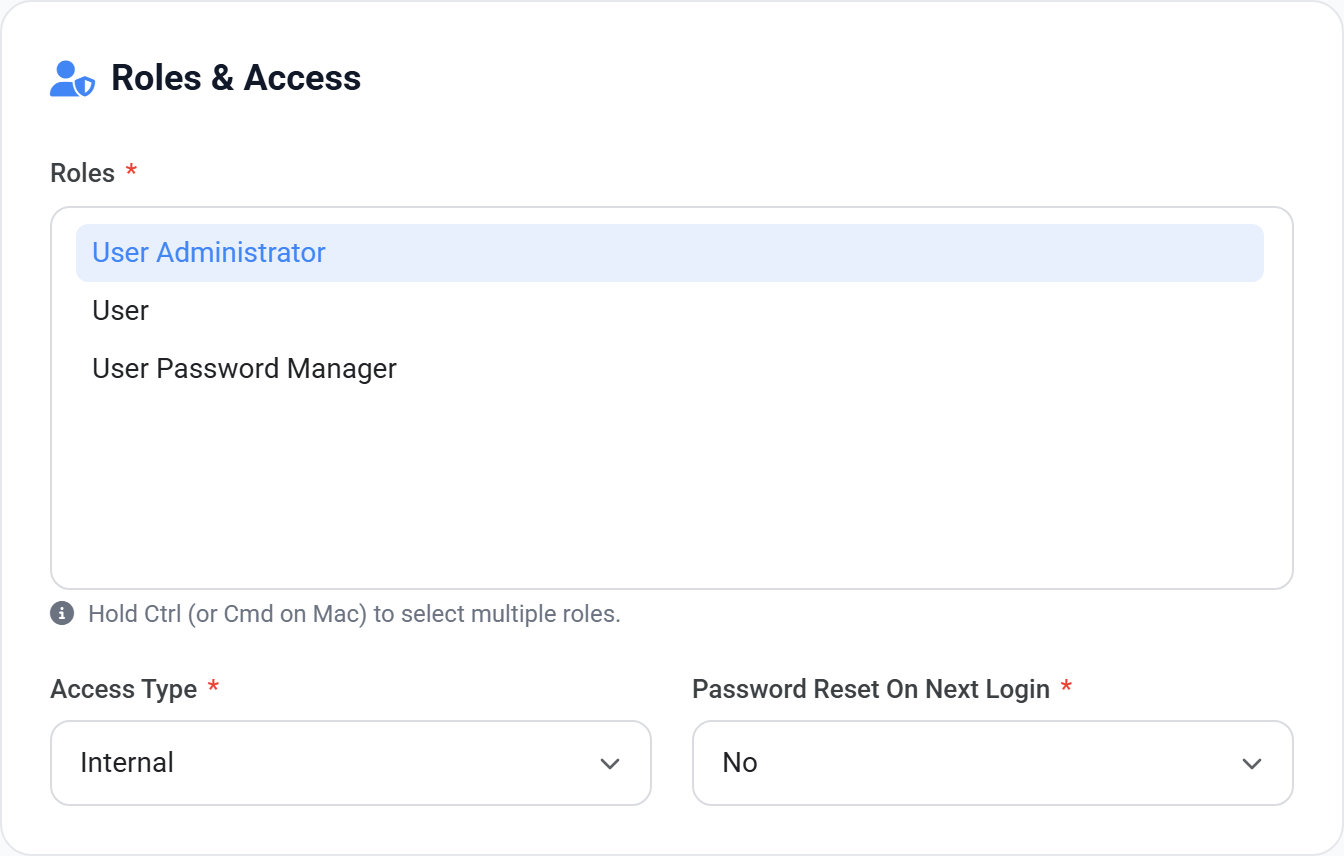
This restriction is governed by each person's Access Type. Users set to Internal must come from the listed networks; users set to External are unaffected. That is how you allow home workers and field staff while pinning office-based accounts to the office.
Your own current address is visible in User Logs. Confirm it falls inside the list you are about to save — this control has no observe mode.
Saving the list above does not restrict anyone by itself. Unlike the other controls, IP restriction has no per-user on/off switch: it follows each person's Access Type, so who is covered is decided on their user record.
- 1 Save the network masks on the domain, using the page above.
- 2 Go to Users → All Users and open someone you want to restrict.
- 3 On the Roles & Access card, set Access Type to Internal.
- 4 Leave anyone who works remotely as External, or they will be locked out.
 View full size
Users → Bulk Manage Users can set IP Restriction across a selection, which is quicker than opening each record when you are rolling this out to a whole office.